Actions
Task #266
openOBS Installation and Setup
Start date:
01/05/2026
Due date:
% Done:
0%
Estimated time:
Description
To install OBS using the following commands
sudo add-apt-repository ppa:obsproject/obs-studio

sudo apt update

sudo apt install obs-studio
Files
| 1_obs_package.png (96.6 KB) 1_obs_package.png | |||
| 2_obs_update_install_package.png (107 KB) 2_obs_update_install_package.png | |||
| 3_open_obs_app.png (71.7 KB) 3_open_obs_app.png | |||
| 4_add_source.png (74.4 KB) 4_add_source.png | |||
| 5_create_source.png (76 KB) 5_create_source.png | |||
| 6_window_screen.png (73.9 KB) 6_window_screen.png | |||
| 7_start_recording.png (122 KB) 7_start_recording.png | |||
| 8_stop_recording.png (123 KB) 8_stop_recording.png | |||
| 9_remux_recording..png (89.5 KB) 9_remux_recording..png | |||
| 10_obs_to_mp4.png (95.2 KB) 10_obs_to_mp4.png |
Actions
#1
Updated by Botchina Renukanth 9 months ago
- File 1_obs_package.png 1_obs_package.png added
- File 2_obs_update_install_package.png 2_obs_update_install_package.png added
- File 3_open_obs_app.png 3_open_obs_app.png added
- File 4_add_source.png 4_add_source.png added
- File 5_create_source.png 5_create_source.png added
- File 6_window_screen.png 6_window_screen.png added
- File 7_start_recording.png 7_start_recording.png added
- File 8_stop_recording.png 8_stop_recording.png added
- File 9_remux_recording..png 9_remux_recording..png added
- File 10_obs_to_mp4.png 10_obs_to_mp4.png added
- Status changed from New to In Progress
OBS Installation
Step1:
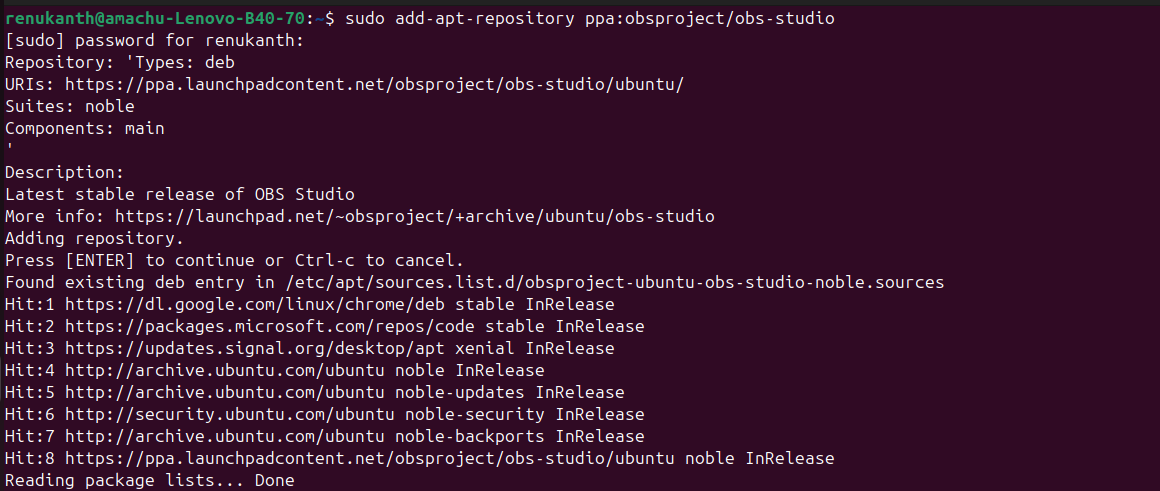
- Open the terminal window and install a specific package
sudo add-apt-repository ppa:obsproject/obs-studio
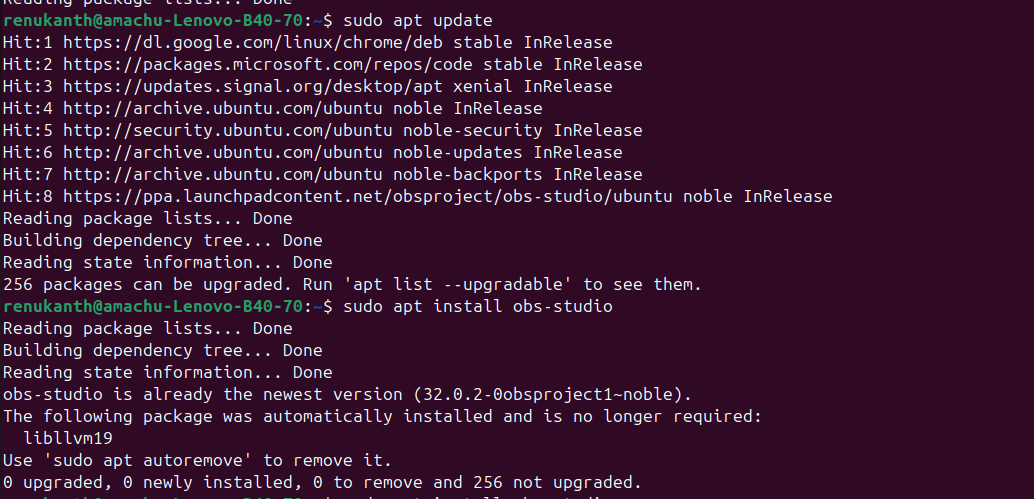
- Update the packages
sudo apt update
- Enter the given command for installation
sudo apt install obs-studio
Step2:
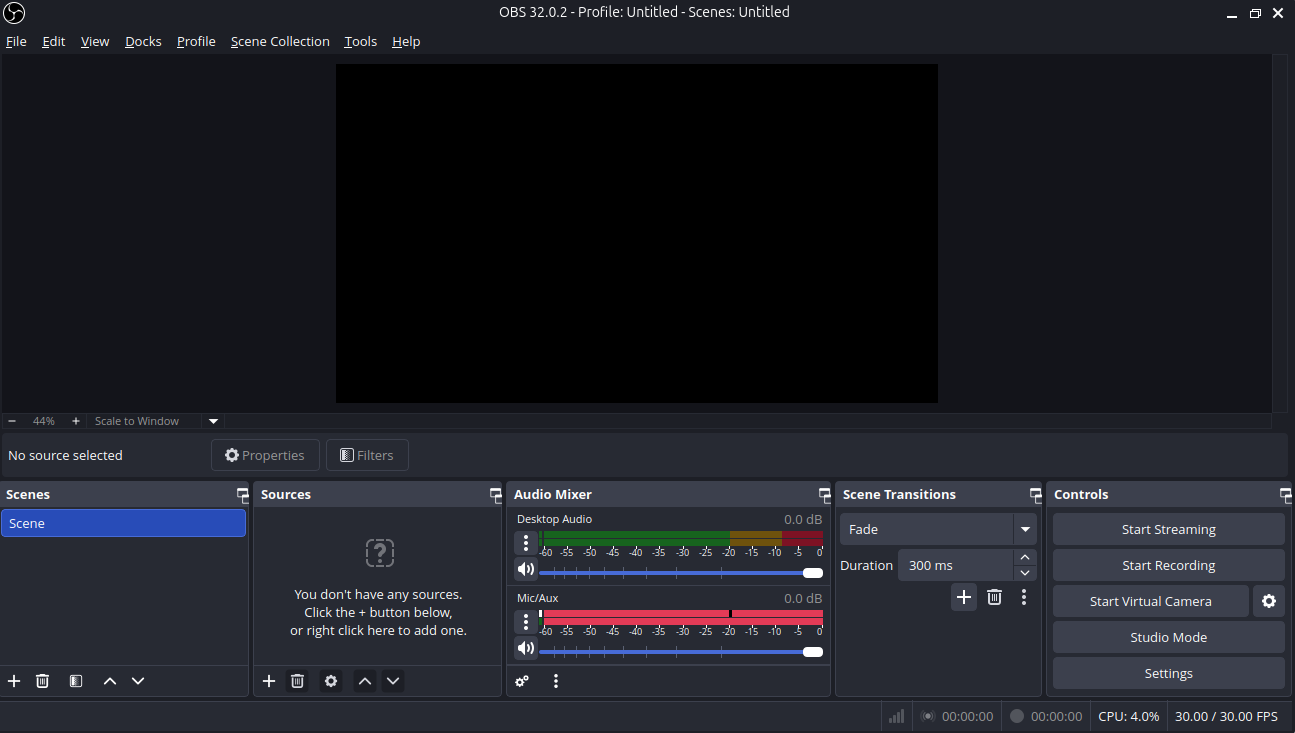
- Click OBS to run the application.
-
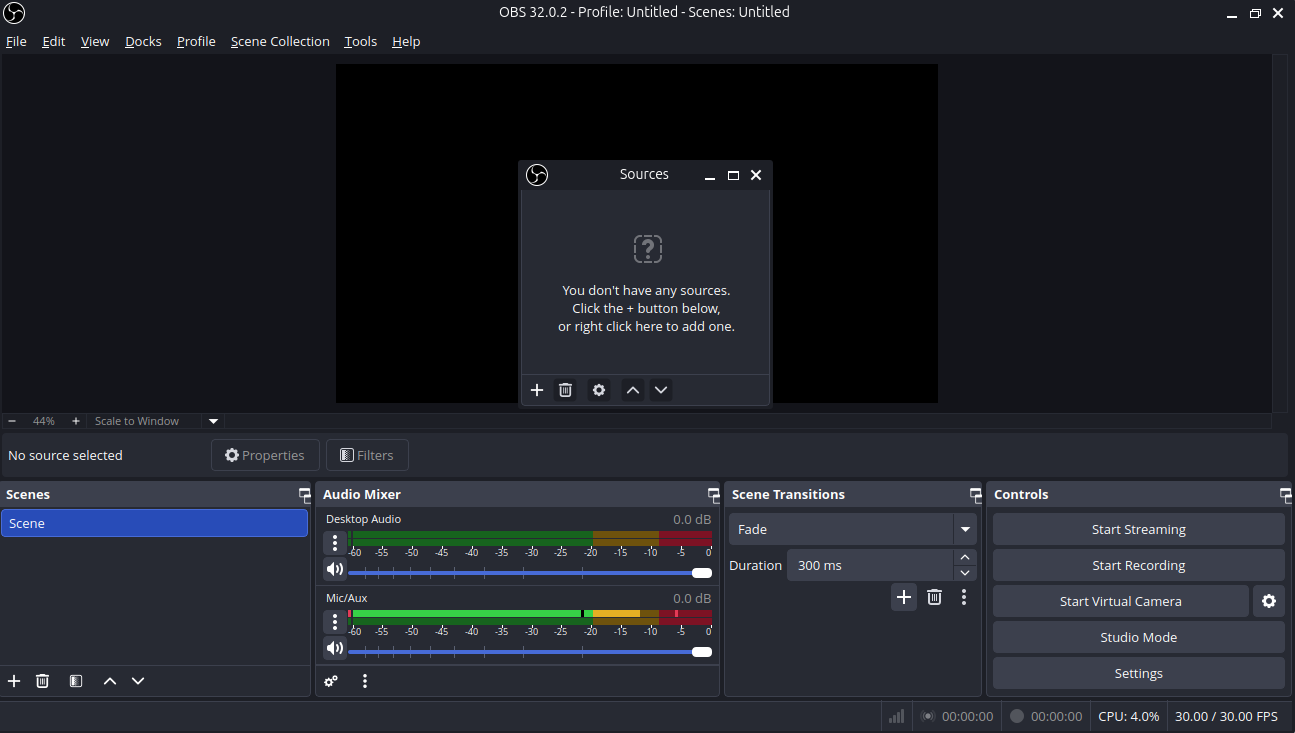
Before Screen recording add source and click screen capture(pipewire).
Path: Docks --> Sources --> screen capture(pipewire).
- Create a new source
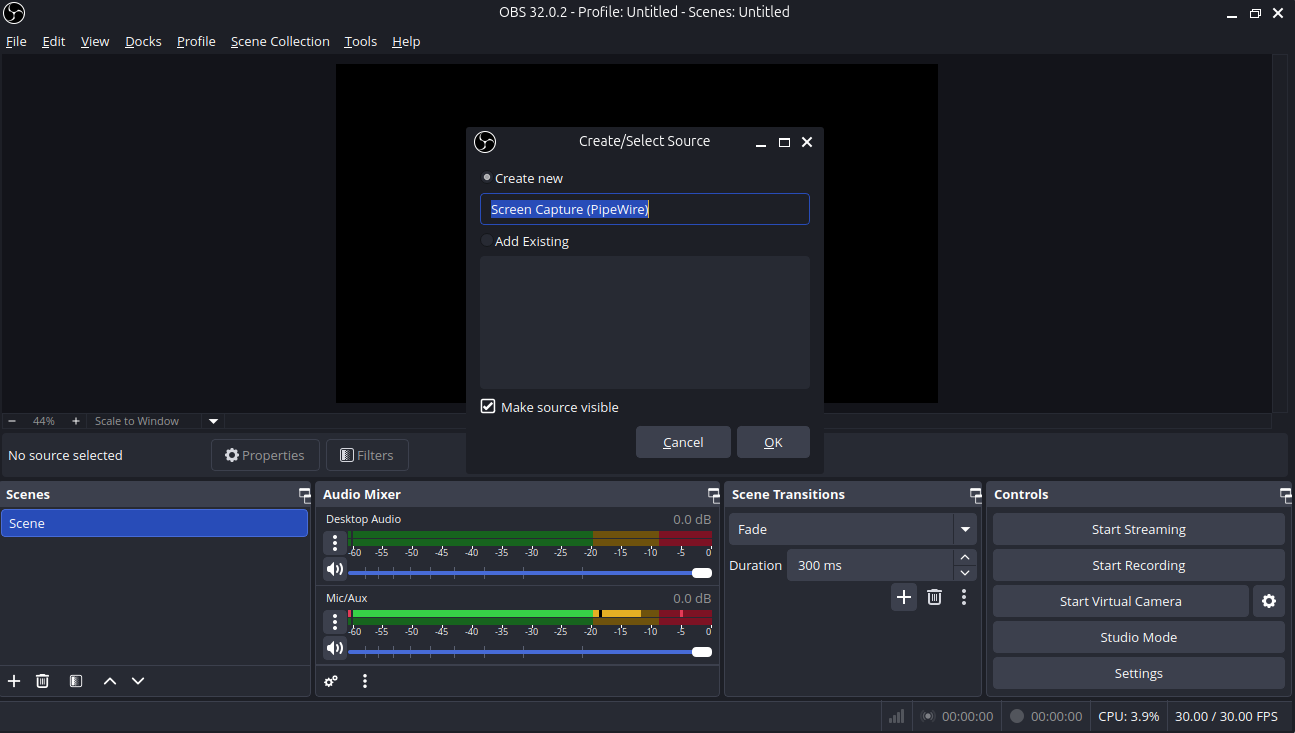
- Select the window screen
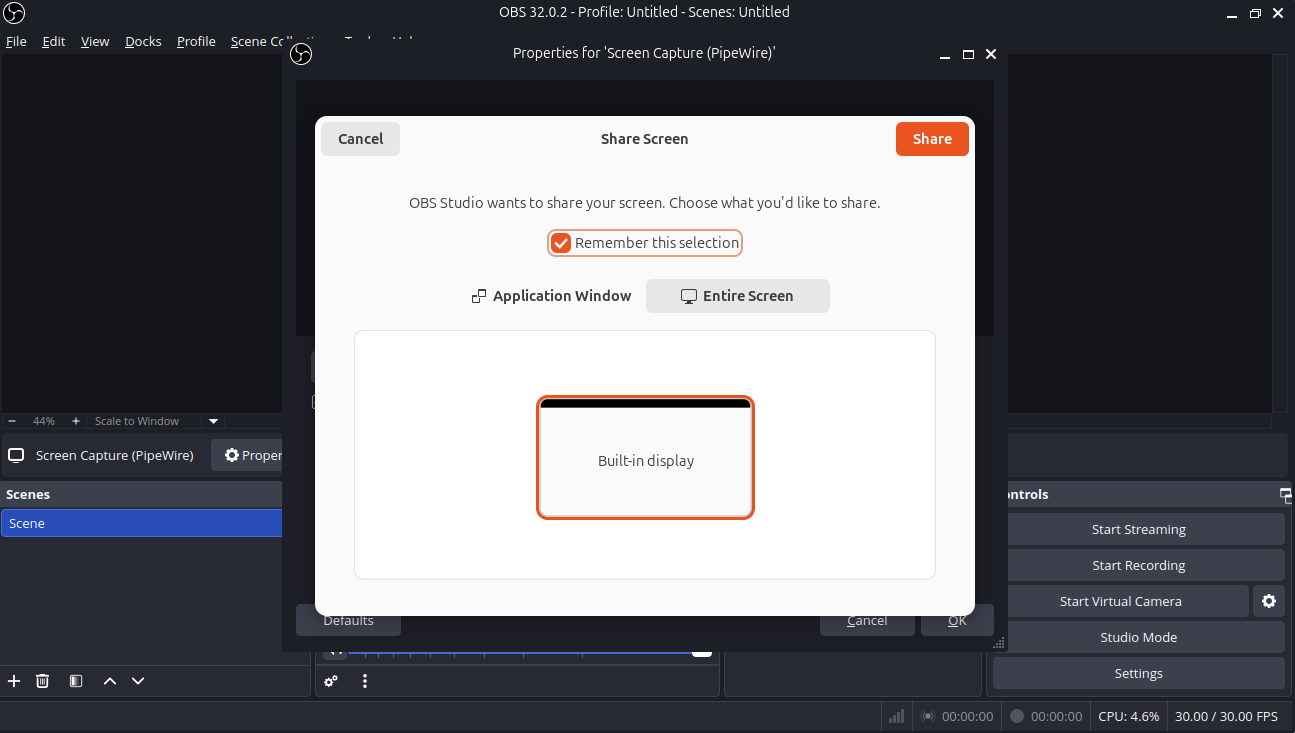
- Click start recording
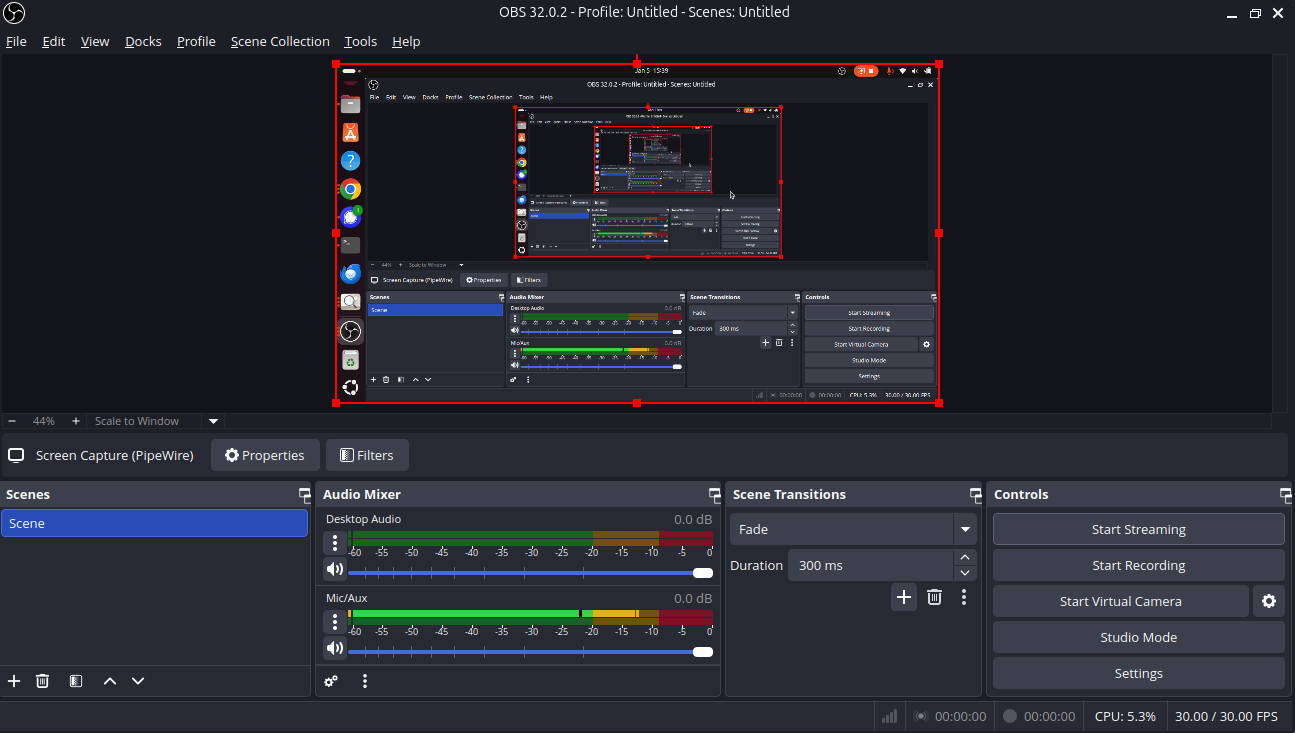
- Click stop recording to stop.
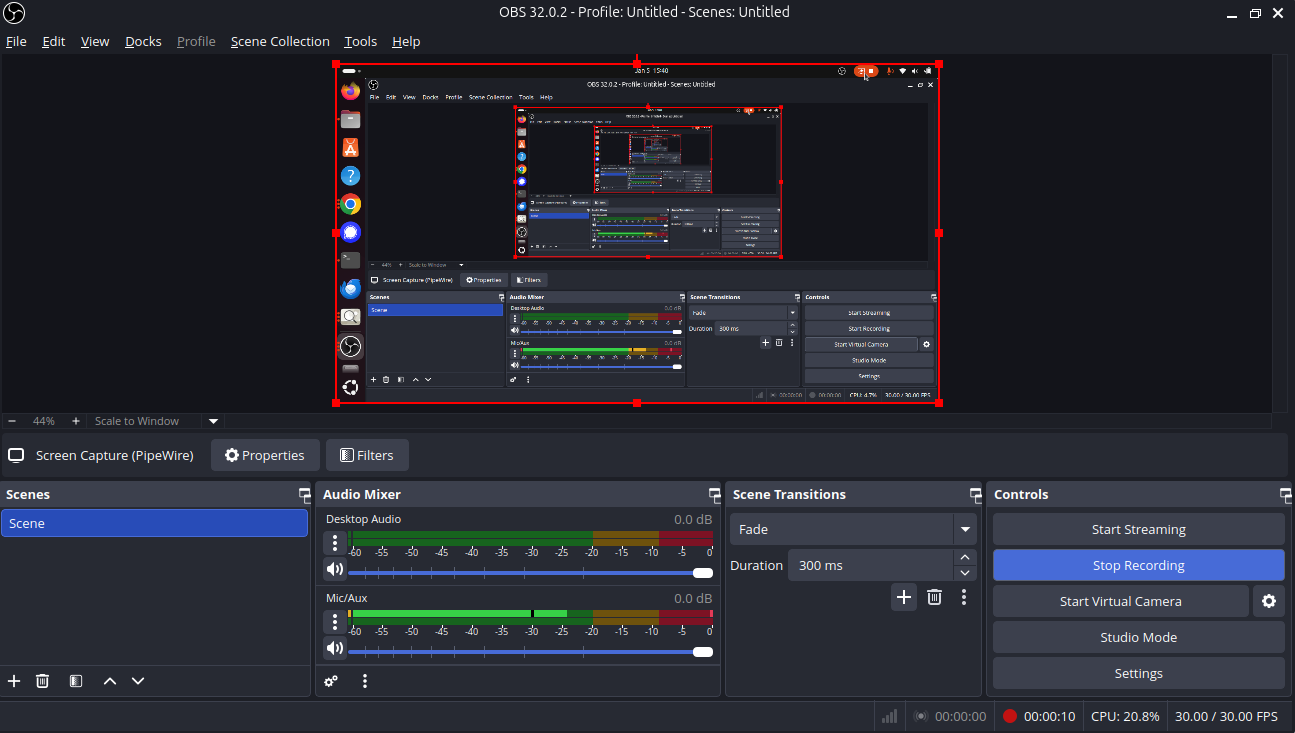
-
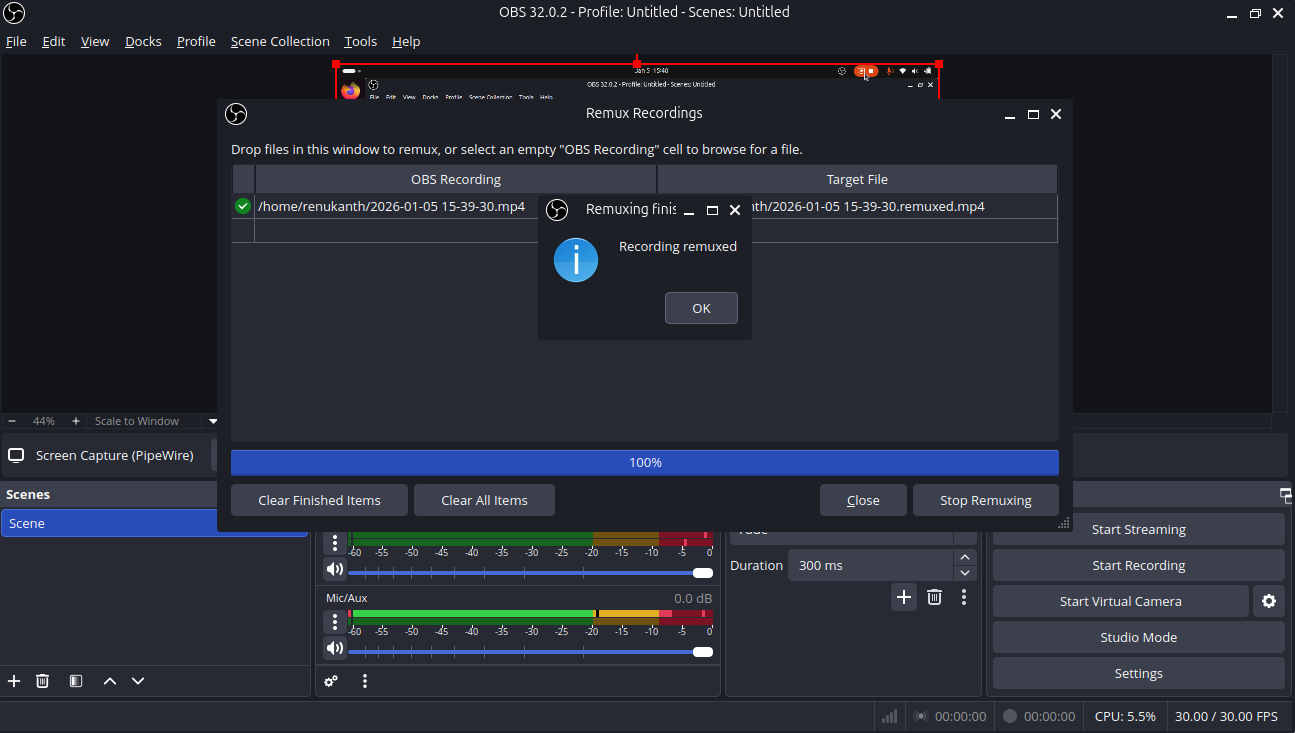
To change an OBS recording from MKV to MP4, use the Remux Recordings feature in OBS Studio
Path: File --> Remux Recording
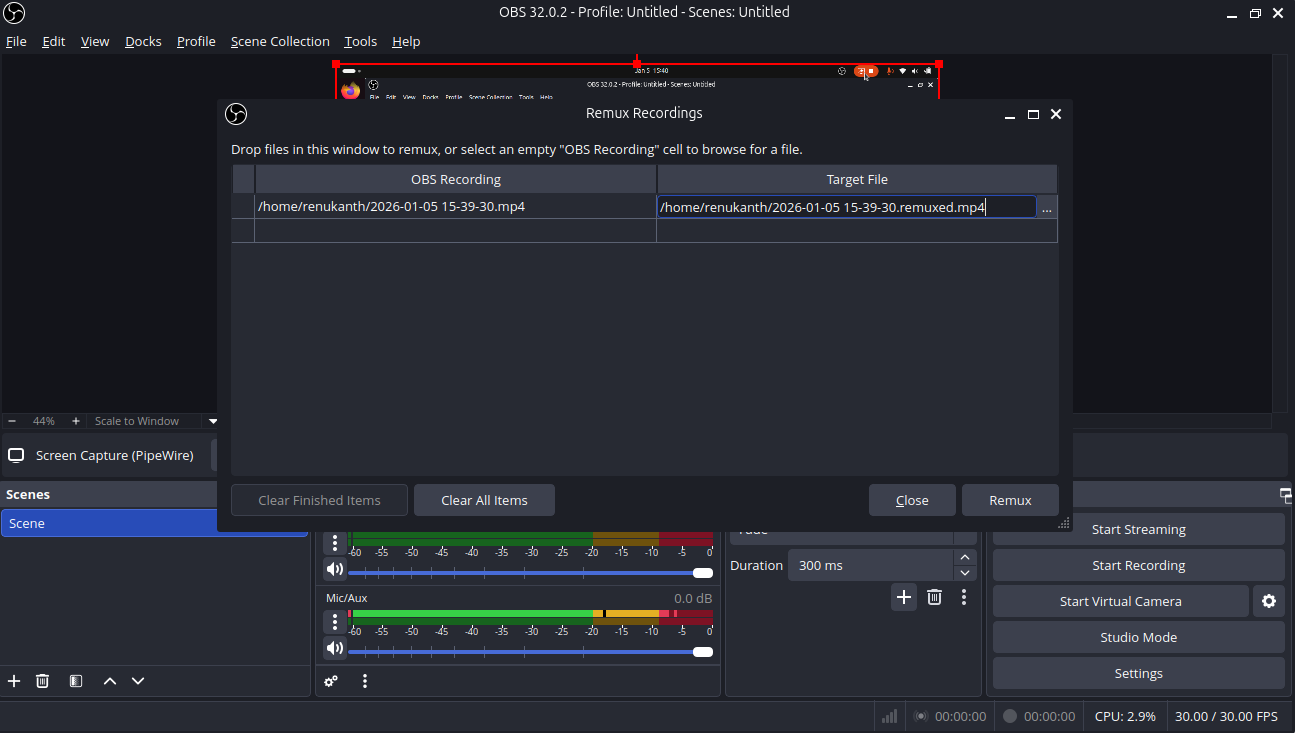
- Select obs recording file and click remux button and converted into MP4 file.
Updated by Botchina Renukanth 9 months ago
- Status changed from In Progress to Resolved
Actions